
Selenium 4 introduced relative locators. This new feature allows the user to locate an object in relation to another object on the screen. While Ranorex Studio’s object repository is unable to handle this feature as a user you can create user code to access this feature.
How to Add User Code to Your Solution
Adding user code is easy when you follow the steps below.
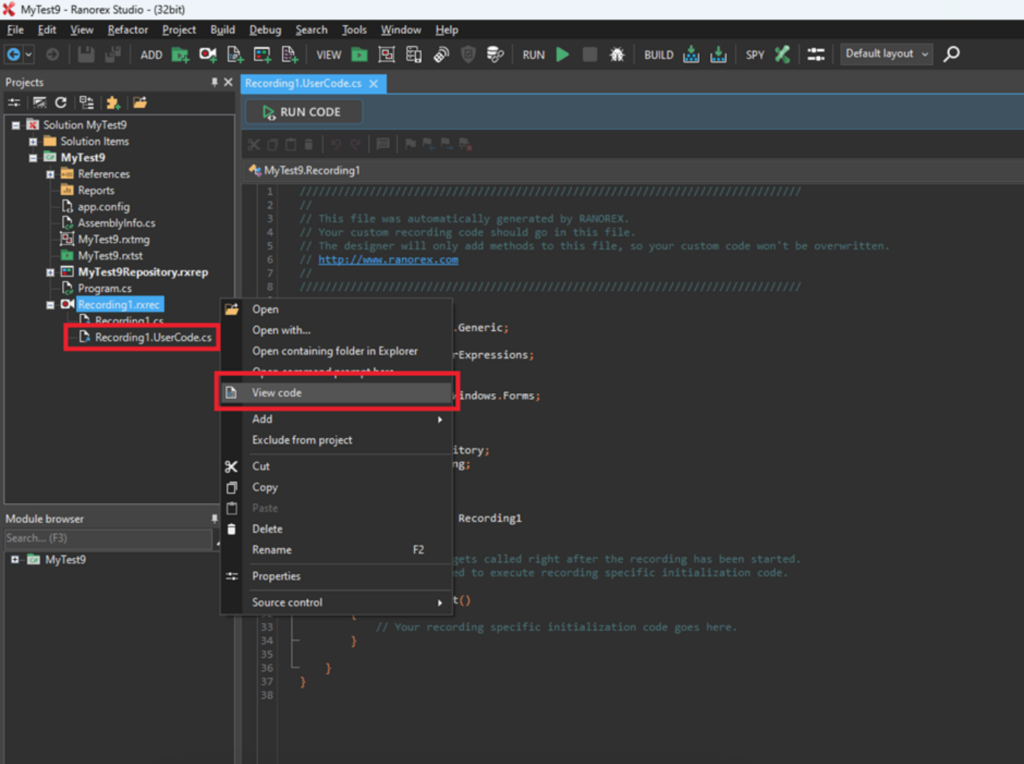
1. Right-click on a recording in the solution and select View Code, or expand the Recording.rxrec item and open the Recording.UserCode.cs inside of it like below:
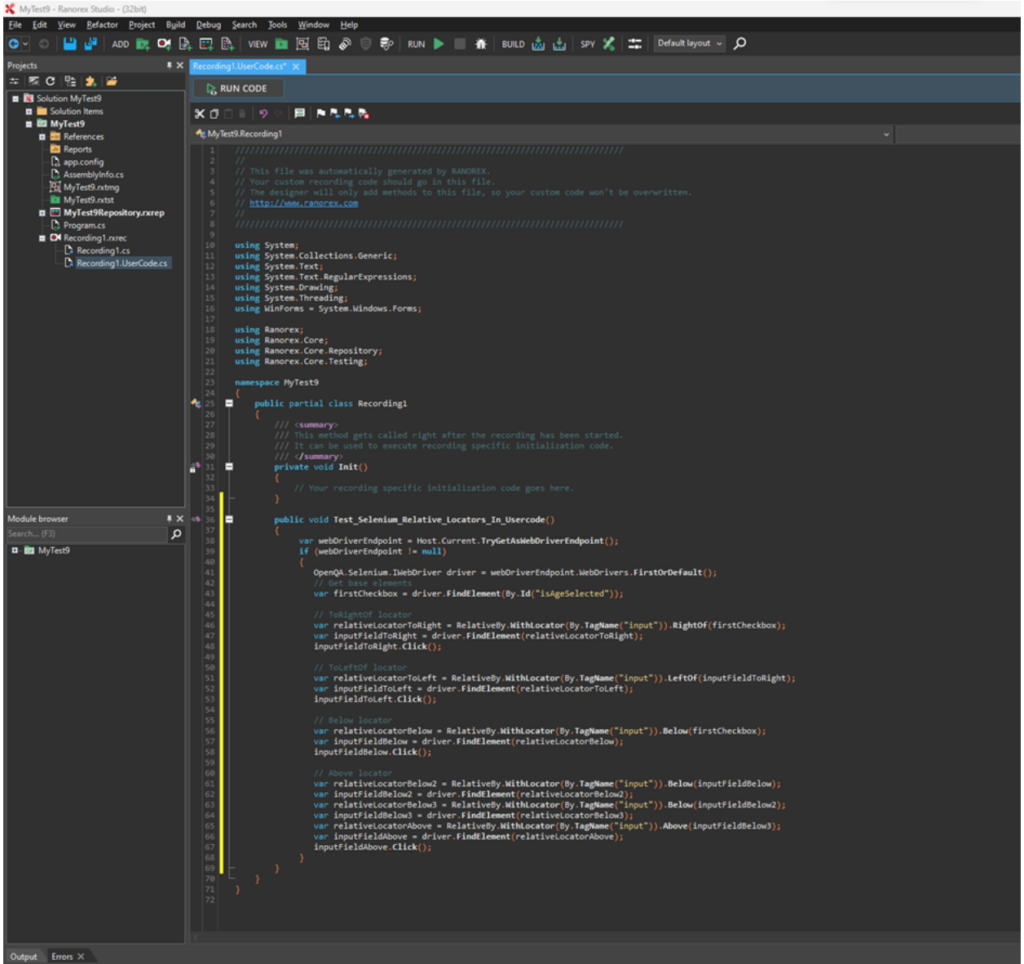
2. Inside the file that opens, you can add your user code, like below:
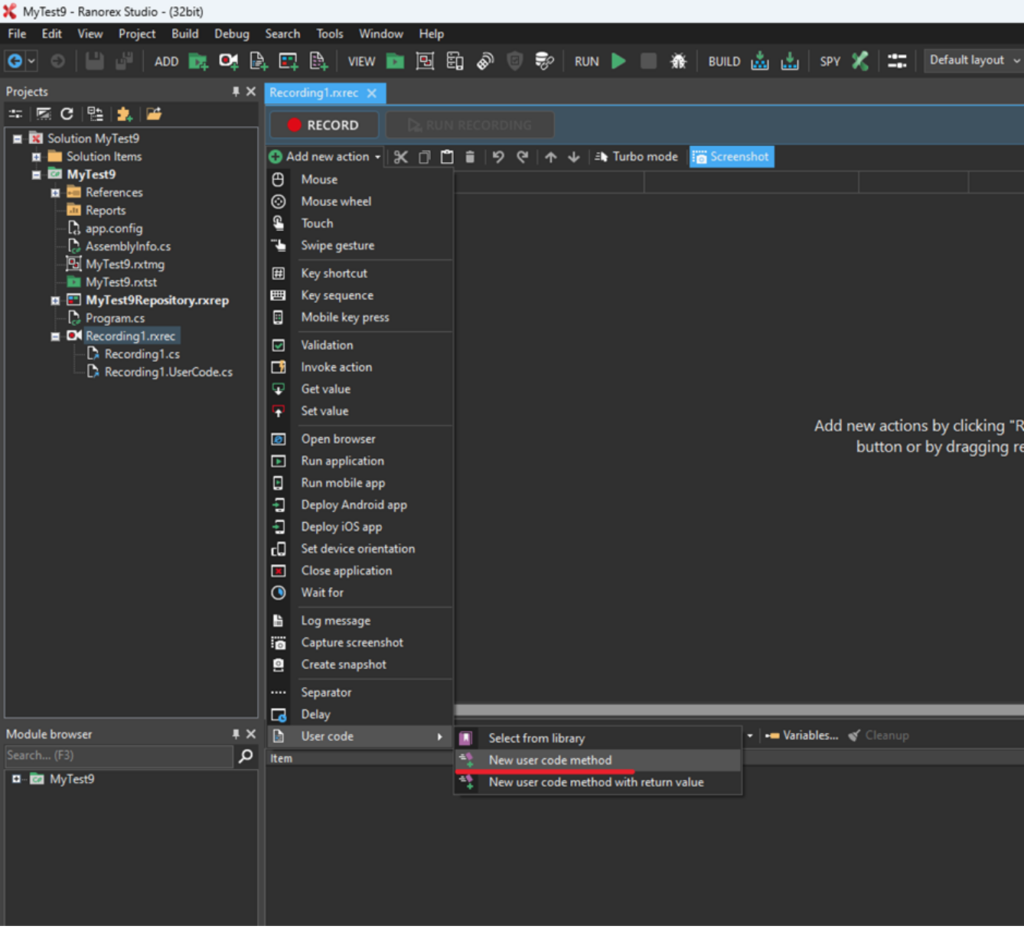
3. After placing your custom code and saving the file, go to the recording module and click on Add new action -> User Code -> New user code method.
4. In the Method column of the newly added action, select “Select from library…” from the dropdown and you will be presented with the window below, where you can select a method from your custom code:
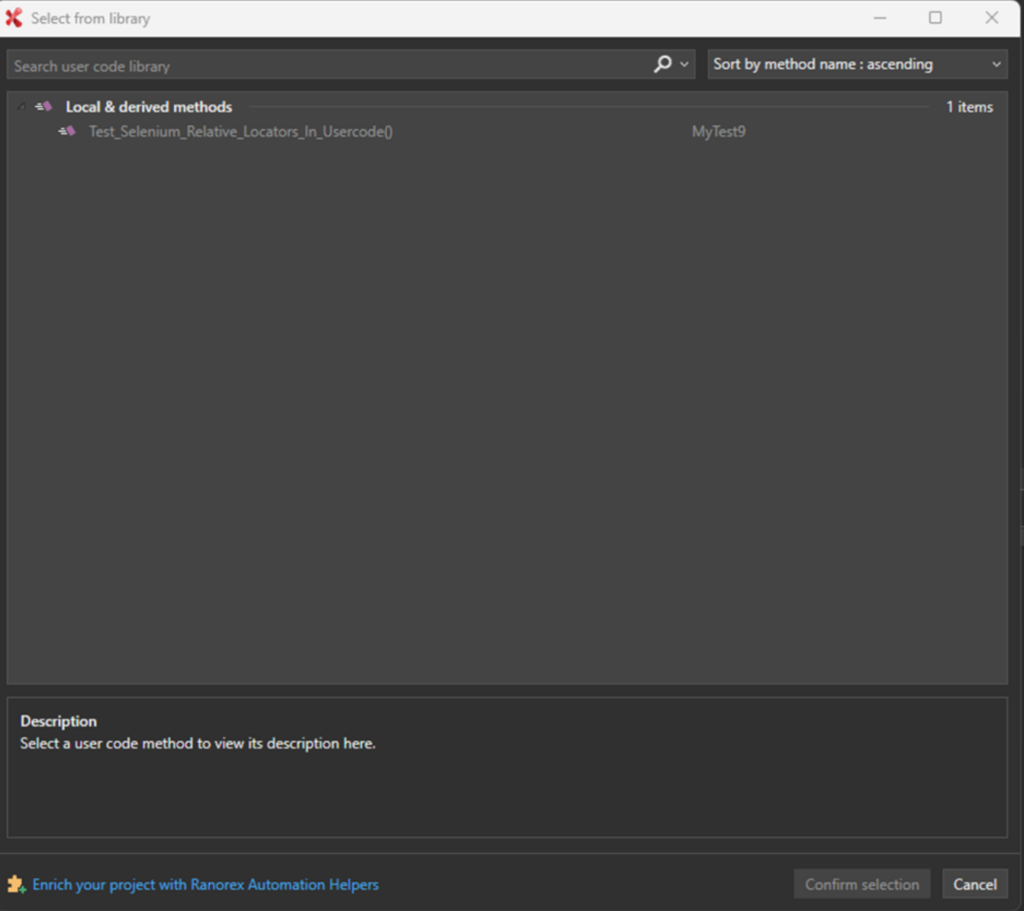
5. Click Confirm and the custom code user action is added to the recording.
Once you’re ready to add your custom code, your User Code file should start with the following header. This ensures that all necessary libraries are included:
using System;
using System.Collections.Generic;
using System.Text;
using System.Text.RegularExpressions;
using System.Drawing;
using System.Threading;
using WinForms = System.Windows.Forms;

using Ranorex;
using Ranorex.Core;
using Ranorex.Core.Repository;
using Ranorex.Core.Testing;

namespace MyTest3
Sample User Code to Access the Relative Locators of Selenium 4
Now, let’s dive into an example. The following user code demonstrates how to access Selenium 4’s relative locators within Ranorex:
using System;
using System.Collections.Generic;
using System.Text;
using System.Text.RegularExpressions;
using System.Drawing;
using System.Threading;
using WinForms = System.Windows.Forms;
using System.Linq;
using Ranorex;
using Ranorex.Core;
using Ranorex.Core.Repository;
using Ranorex.Core.Testing;
using OpenQA.Selenium;
namespace MyTest3

{
public partial class Recording1
{

/// <summary>
/// This method gets called right after the recording has been started.
/// It can be used to execute recording specific initialization code.
/// </summary>

private void Init()
{
// Your recording-specific initialization code goes here.
}
public void Test_Selenium_Relative_Locators_In_Usercode()
{
      var webDriverEndpoint = Host.Current.TryGetAsWebDriverEndpoint();
      if (webDriverEndpoint != null)
       {
           OpenQA.Selenium.IWebDriver driver = webDriverEndpoint.WebDrivers.FirstOrDefault();
                // Get base elements
                var firstCheckbox = driver.FindElement(By.Id("isAgeSelected"));

                // ToRightOf locator
                var relativeLocatorToRight = RelativeBy.WithLocator(By.TagName("input")).RightOf(firstCheckbox);
          var inputFieldToRight = driver.FindElement(relativeLocatorToRight);
           inputFieldToRight.Click();

          // ToLeftOf locator
          var relativeLocatorToLeft = RelativeBy.WithLocator(By.TagName("input")).LeftOf(inputFieldToRight);
          var inputFieldToLeft = driver.FindElement(relativeLocatorToLeft);
           inputFieldToLeft.Click();

          // Below locator
          var relativeLocatorBelow = RelativeBy.WithLocator(By.TagName("input")).Below(firstCheckbox);
          var inputFieldBelow = driver.FindElement(relativeLocatorBelow);
           inputFieldBelow.Click();

          // Above locator
          var relativeLocatorBelow2 = RelativeBy.WithLocator(By.TagName("input")).Below(inputFieldBelow);
          var inputFieldBelow2 = driver.FindElement(relativeLocatorBelow2);
          var relativeLocatorBelow3 = RelativeBy.WithLocator(By.TagName("input")).Below(inputFieldBelow2);
          var inputFieldBelow3 = driver.FindElement(relativeLocatorBelow3);
          var relativeLocatorAbove = RelativeBy.WithLocator(By.TagName("input")).Above(inputFieldBelow3);
          var inputFieldAbove = driver.FindElement(relativeLocatorAbove);
           inputFieldAbove.Click();

          // Near locator
          // This doesn't work yet because the C# selenium client is broken for the "near" locator

    //          var inputFormsDropdown = driver.FindElement(By.ClassName("dropdown-toggle"));
    //     var relativeLocatorNear = RelativeBy.WithLocator(By.ClassName("dropdown-toggle")).Near(inputFormsDropdown, 100);
    //     var datePickersDropdown = driver.FindElement(relativeLocatorNear);
    //     datePickersDropdown.Click();
       }
     }
   }
}
Ranorex and Selenium 4 Relative Locators
As we’ve seen, integrating Selenium 4’s relative locators with Ranorex opens up new possibilities for enhancing your automated testing strategies. Although Ranorex Studio’s object repository doesn’t directly support this feature, the flexibility of adding custom user code allows you to leverage these powerful locators. This approach not only expands the capabilities of your testing tools but also ensures your applications are rigorously tested against a wider range of scenarios. We encourage you to experiment with this technique in your own testing environments. Remember, the key to successful automation lies in continuous learning and adaptation.


