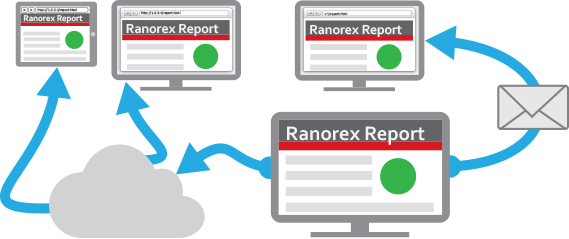
This blog post will discuss the possibilities to share your automatically generated Ranorex Reports over your local network or via email. There is no need to have Ranorex installed on the machine you will open the shared report. This is possible because the Ranorex Report format is based on XSL, XML and HTML.
Performing the following very simple adaptions, you will be able to open the report file using any common browser.
Share via Mail
To share a Ranorex Report you can manually compress all files necessary for reporting and attach the corresponding package to your mail. Or you can simply activate the creation of a zipped report file and attach the generated zipped report file (*.rxzlog) to your mail. These two mentioned methods require that the Ranorex Report Viewer is installed on the machine receiving the shared Report.
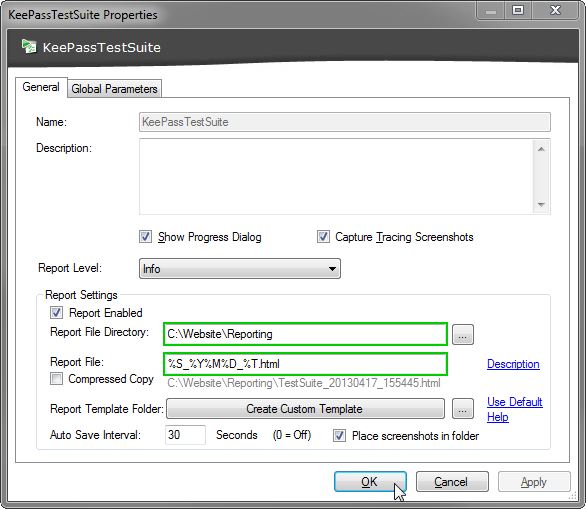
To overcome this requirement simply change the extension form “*.rxlog” to “*.html” in the Test Suites properties pane.
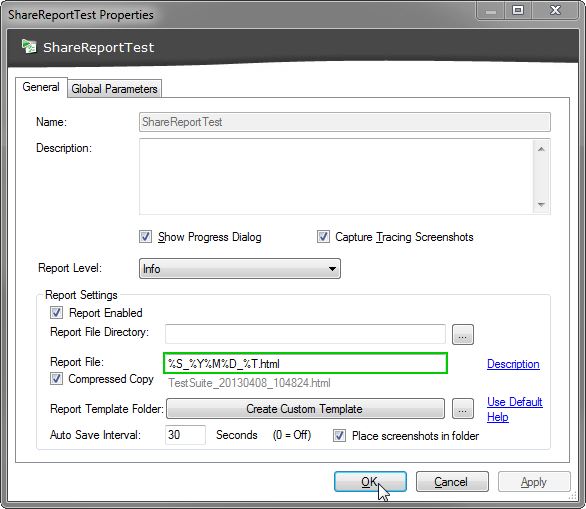
After that, you will be able to open the generated report file using any common browser as well as compress all files necessary for reporting and attach them to an email.
Share Over Local Network
Next to sharing your Ranorex Reports via mail, you can also share them over your company network. You can for example use the Microsoft Internet Information Service (IIS) for doing so.
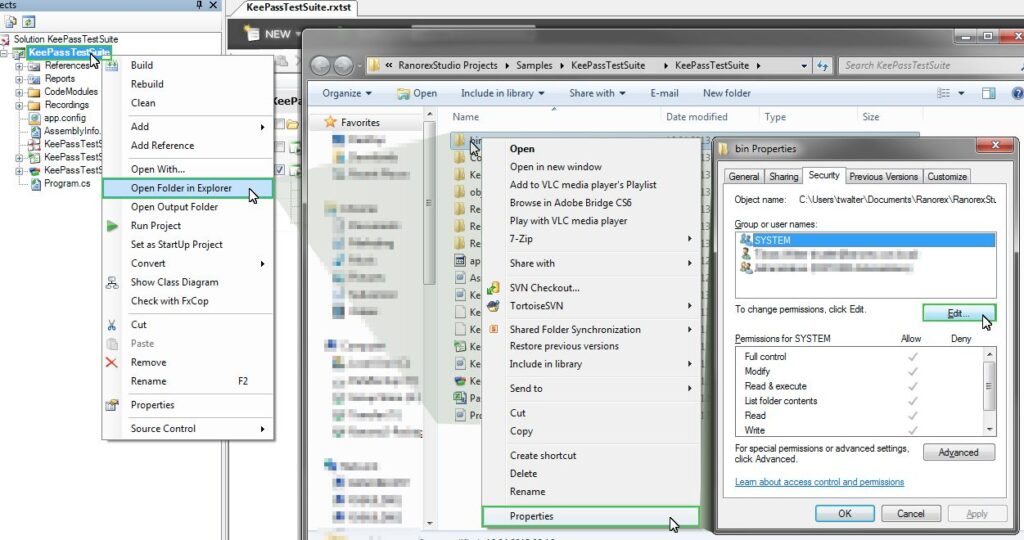
In Ranorex Studio right-click on the project you want to share the report of and choose “Open Folder in Explorer”. Right-click the “bin” folder and open the “Properties” dialog. Switch to the “Security” tab and click on “Edit” button.
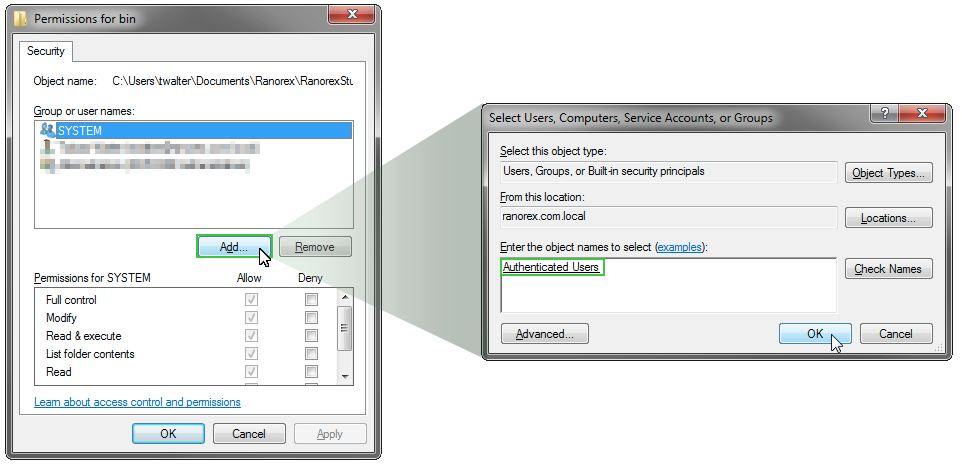
Click on Add, enter “Authenticated Users” in the “Names” edit field and confirm the added permissions by pressing the “OK” button in all opened dialogs.
Define a folder in your Test Suite settings, where the report files should be stored at and change the report file extension from “*.rxlog” to “*.html”.
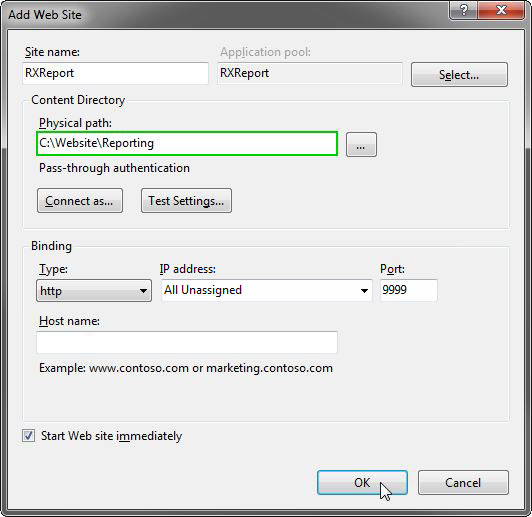
After doing so, add a website linking to the defined Content Directory in Internet Information Service Manager.
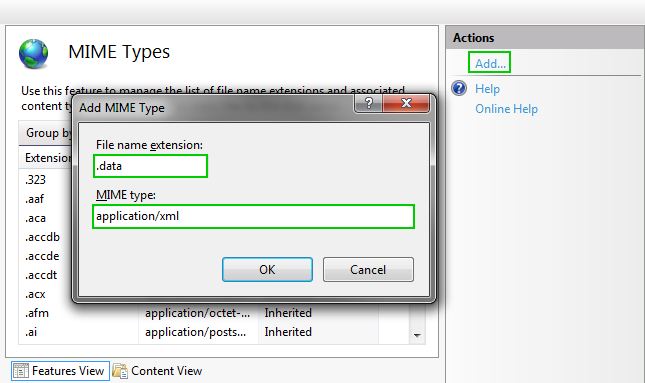
To correctly display your report data you have to add the extension “.data” to the list of “MIME-Types”. To do so, open the “MIME Types” settings dialog. Add a MIME Type for the file name extension “.data” with the type “application/xml”.
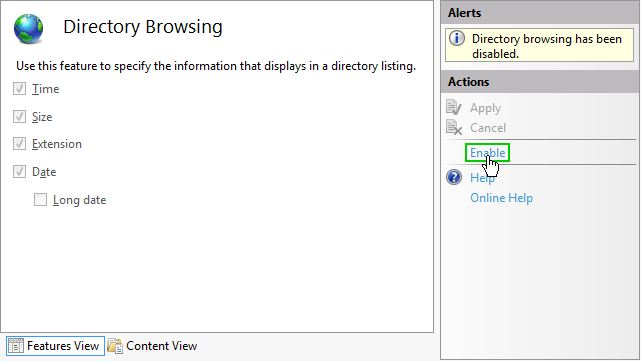
Enable “Directory Browsing” for displaying all generated report files on your website.
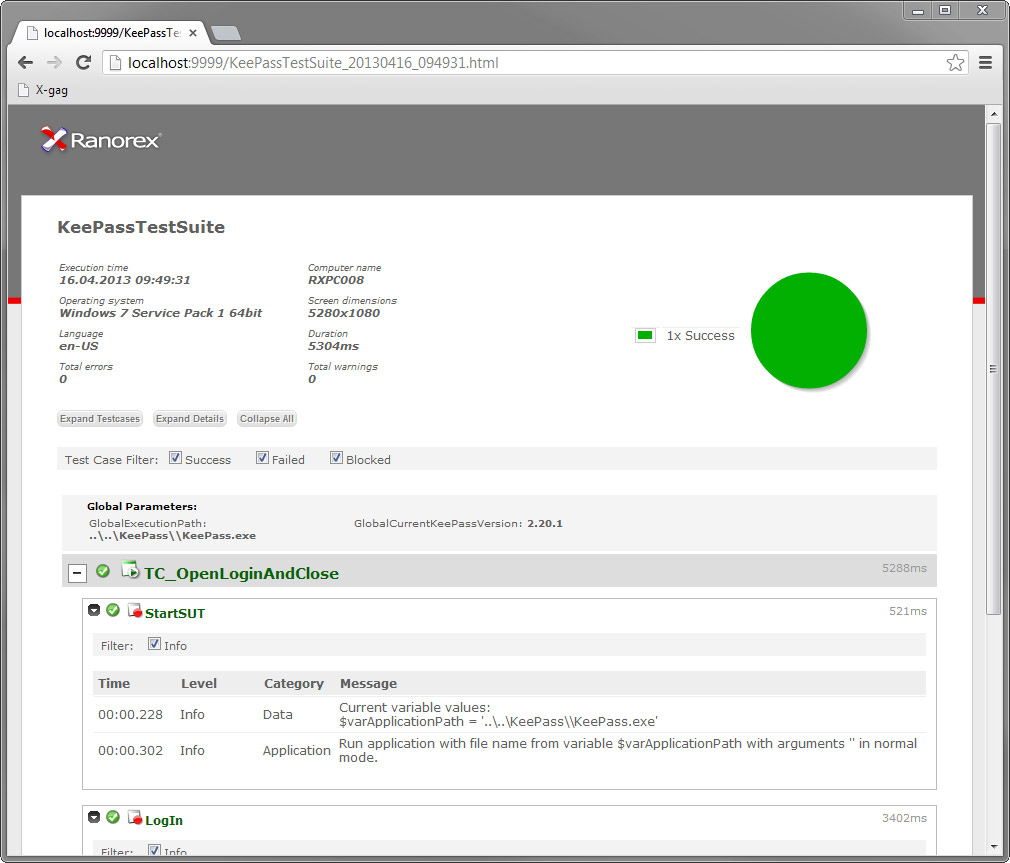
Now you are able to view your report file over the network using all common browsers.
Conclusion
By performing these easy to follow steps you will be able to share your Ranorex Reports to any machine regardless of a Ranorex installation or even the operating system by opening them using any common browser. You can even share Ranorex Reports to mobile devices.